How Okuriko works
Showing is easier than telling. This scene is from a real story: tap to move on, and pick one when a choice comes up. Everything else is below.

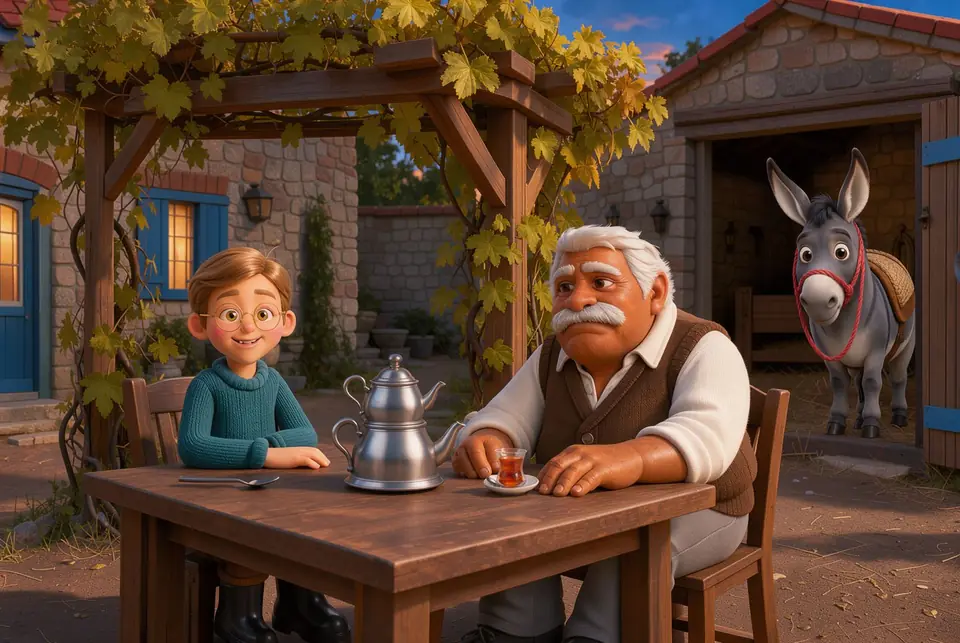
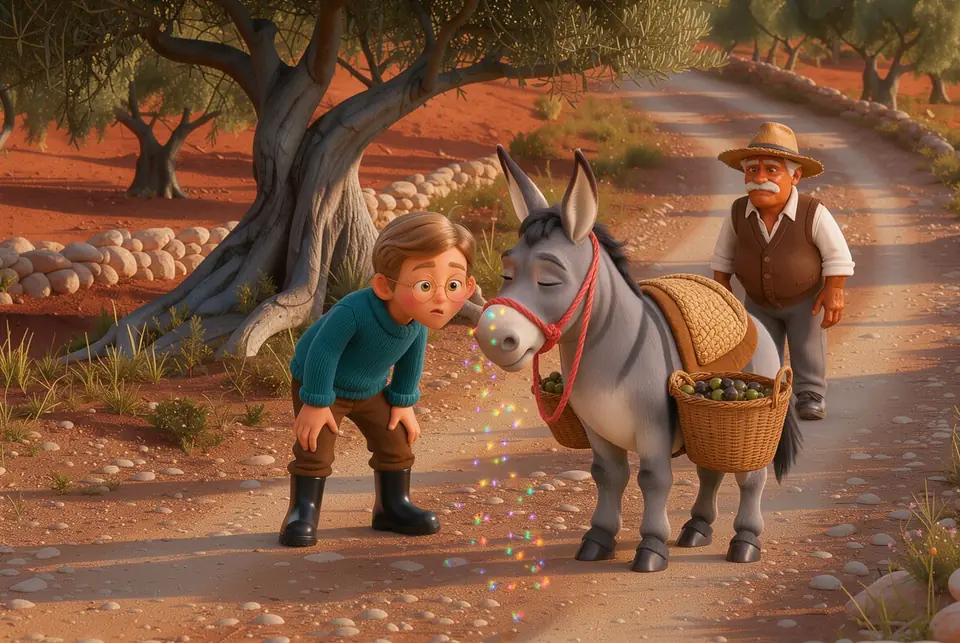

When they reached the bend, Peanut planted all four hooves in the dirt and froze like a statue.
Tap to continue
Make a choice!
Your choice changed the story
Whoever picks the other path sees a different scene. Every story on Okuriko moves like this and leads to more than one ending.
An abridged passage from “Why Did Peanut Stop?”.
Getting started
Four steps take you from a first story to your child's own profile. The first one does not even need an account.
-
Open a story
42 stories in the library are free and can be read without signing up. Pick one in Explore and press “Start the Adventure”.
Go to the stories -
Create a free account
With an account, reading progress, XP and badges are saved. Remember to click the confirmation link sent to your email.
Sign up -
Add a child profile
Each child's level, badges and reading history are kept separately. You can put a PIN on the profile if you like.
Manage profiles -
Pick a profile and read
After signing in, the “Who's Watching?” screen opens. The child taps their own profile and starts reading.
Select a profile
Reading a story
In the reader the picture fills the screen and the text runs along the bottom, just like the scene you tried above.
Tap to move on
Each tap brings the next line; on a computer, Space or Enter works too. The reader holds every line for a moment: the point is to read, not to skip.
At a choice, the story waits for you
When “Make a Choice!” appears, pick one of the paths. The story continues down that path, and a choice cannot be undone.
Every story has more than one ending
The ending screen shows how many of the endings you have found. “Read again” starts over so you can look for the others with different choices, and parts you have already read can be skipped with one tap.
Your place is kept
A story you leave unfinished waits under “Continue the Adventure” on the home page and reopens at the last scene you entered. Without an account, progress is kept only in that browser.
Reading tools
For children who are learning to read or find reading hard. Flip the switches and watch the sentence change.
When they reached the bend, Peanut planted all four hooves in the dirt and froze like a statue.
-
Bionic reading
Sets the first half of every word in bold, so the eye moves along the line more easily.
-
Dyslexia-friendly typeface
Switches to OpenDyslexic, a typeface whose letters are easier to tell apart.
Turned on while reading
Syllable mode and bionic reading are turned on from the Settings button in the reader. On a child profile the choice is remembered, so the next story starts the same way.
Applied across the whole site
In the top menu, the button turns on the dyslexia-friendly typeface and the button turns on dark mode. Magic Glasses applies a color filter for those who have trouble telling colors apart. On a phone, all three sit at the bottom of the menu.
All accessibility featuresRewards
They are earned by reading and none of them can be bought. The one exception is diamonds, which the table below explains.
- XP
- Finishing a story for the first time gives you its XP; the story card shows how much. Finding a new ending earns extra XP.
- Level
- As XP adds up you level up: every 500 XP is one level.
- Daily streak
- Counts how many days in a row you have finished a story. Skip a day and the count starts over.
- Badges
-
They come with achievements such as finishing your first story, and are collected on the Badges page. On a child profile, each badge also earns 5 tokens.
Badges
| Question | Tokens | Diamonds |
|---|---|---|
| How do you get them? | By reading. On a child profile, every finished story and every badge gives tokens. | A parent buys them, or a Premium subscription provides them every month. |
| Who holds them? | The profile of the child who earned them. | The parent first. They are sent to a child from the “Diamond Management” page and can be taken back. |
| Where are they spent? | In the Avatar Shop: new looks and accessories for the avatar. | In the Image Studio (“AI Images” in the menu): the child describes a scene and AI draws it. If the image fails, the diamonds are returned. |
The Avatar Shop and the Image Studio open with a child profile.
Avatar Shop
Image Studio
Parents and teachers
What you can see while a child reads, and what is ready for talking the story over together.
Parent dashboard
While you are on the parent profile, Dashboard appears in the top menu.
- Overview: finished stories, minutes read, total XP, badges and activity over the last 7 days.
- Detailed Analysis: a weekly reading chart, category breakdown and recently read stories for each child.
- Compare: XP, story count and reading time for two or more children, side by side.
- Diamond Management: send diamonds to your children or take them back.
- PIN: optional on a child profile, and asked for when switching to it.
- The child's own sign-in: on the “Child” tab of the sign-in page, the parent's email and the child's PIN are enough. Parent profile and purchases are closed in that session.
Parent and Teacher Corner
Story pages carry a section prepared for talking the story over at home or in class.
- What the story teaches and which school subjects it touches.
- Fact Corner: short explanations of the real-world facts in the story.
- Comprehension questions (5W1H): the answer opens when you tap the question.
- After-reading discussion questions, vocabulary work and an activity idea.
- The Print worksheet button puts all of it on paper.